What a Competitor's Removed Products Tell You (and How to Spot Them)
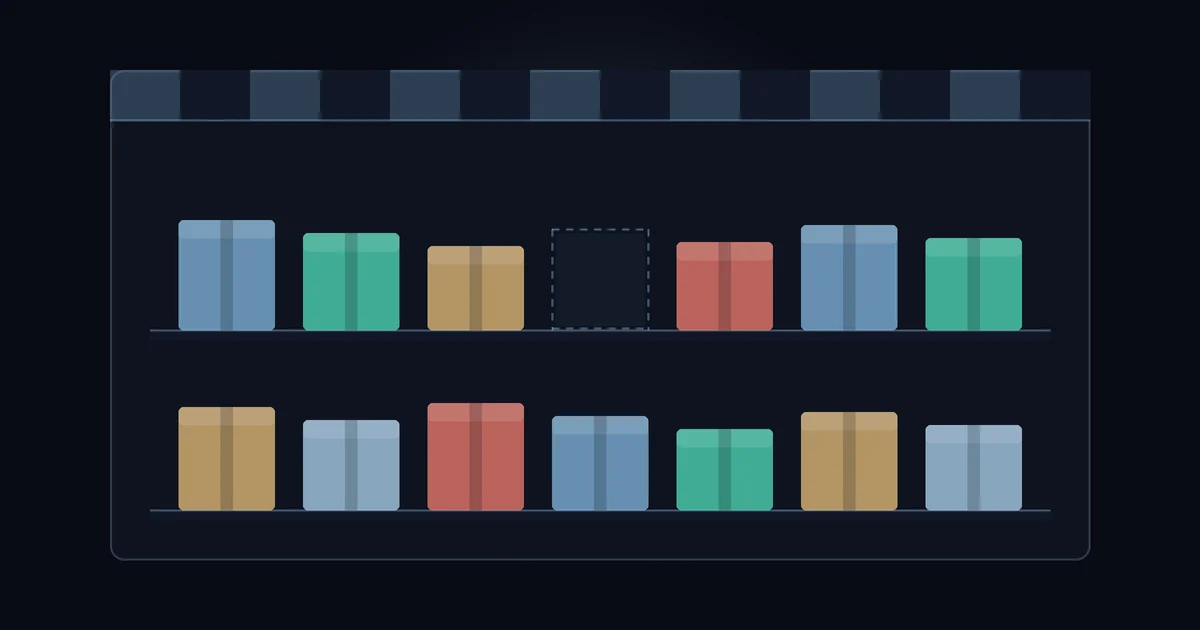
A product that disappears from a competitor's catalog is easy to ignore, but stores rarely announce removals, and one can tell you more than a price cut does. This guide shows how to catch removals with free public data, how to tell a real discontinuation from noise, and what to do with the answer.
What "removed" actually means on a Shopify store
On a Shopify store, a product drops out of the public /products.json feed when the owner deletes it, archives it, sets it to draft, or takes it off the online store sales channel. From the outside, all four look the same: yesterday the product was in the feed, today it is not. If you have not looked at the feed before, start with the /products.json guide.
That is different from a sell-out. A sold-out product usually stays in the feed, and every variant simply shows "available": false. The store still wants you to see it, and often plans to bring it back. A removal means the store decided that customers should not see the product at all, at least for now.
Usually something changed behind it: the supplier, the margin, the season, or the plan for the range.
How to detect removals for free
You need two snapshots of the same store, taken on different days, and a simple comparison.
- Download the full catalog. Request
/products.json?limit=250&page=1, then page 2, page 3 and so on until a page comes back empty. - Save the list of product
idvalues with the title, handle and price for each one. A spreadsheet is enough for a small store. - Repeat the next day, or the next week.
- Any
idthat was in the old snapshot and is missing from the new one is a removal candidate.
Compare by id, not by title or handle. Stores rename products and change handles more often than you would think. If you match by handle, a simple rename looks like one product removed and one new product launched. The id stays the same through a rename, so matching on it filters out that false alarm.
Five ways a removal can fool you
Before you act on a missing product, rule out these cases.
| What you see | What may really be happening | How to check |
|---|---|---|
| Dozens of products vanish at once | Your download failed halfway, or the store limited your requests | Count products in both snapshots. A big drop in total count usually means a fetch problem. Download again. |
| A product is gone, a similar one appears | The store replaced the listing, for example to merge variants or fix a mistake | Look for a new id with a close title, the same vendor or the same images. |
| Sold-out items disappear | Some stores hide sold-out products automatically with a theme setting or an app | Check whether the product comes back later. If removed items keep returning after a few weeks, treat removals at this store as sell-outs. |
| A product disappears and returns the next day | Someone edited it and saved it as a draft for a while | Wait for a second snapshot before you decide anything. |
| Seasonal lines vanish every year | Normal seasonal rotation | Compare with the same month last year if you have the history. |
A simple rule works well: count a product as removed only after it has been missing in two snapshots in a row, and only when the store's total product count did not fall sharply at the same time.
What a removal usually tells you
Once a removal looks real, look at what the product did in the weeks before it went.
- Discounted, then removed. If the product had a
compare_at_priceand dropped in price several times before it vanished, the store was most likely clearing out an end-of-line item. - Sold out for weeks, then removed. The store probably could not get more stock, or decided not to reorder. A supplier problem is possible, especially if several products from the same vendor go at once.
- Removed at full price with stock. The store pulled a product that was still selling. That can mean a quality issue, a legal or listing problem, or a change in range. It is the hardest case to read, so don't jump to conclusions.
- A whole product type or tag removed. When every item with one
product_typeor tag goes at once, the store is probably leaving a category, which is a bigger move than dropping one product. - Removed, then a new version launched. Check
published_aton new products. A removal followed by a similar launch within days usually means the store upgraded the product and kept selling in that line. The launch cadence guide shows how to read those dates.
What to do when a competitor drops a product you also sell
The removal matters most when you stock the same product or a close substitute. Their customers still want it, and some of them will search for it again.
- Ask your supplier about stock before you plan a push. A competitor that left over supply trouble may be a sign the same shortage is coming your way.
- Keep your price where it is. With one seller fewer, you may even have room to test a small increase.
- Put the product name and the words customers search for in your title and description, so the competitor's old buyers find you.
- Keep the product on your list for a few weeks. If it comes back under a new
id, the store just relisted it and nothing changed.
It is close to the playbook for competitor stockouts, except that a stockout closes in days or weeks, while a real removal can leave a gap for months.
What to do when a competitor drops a whole category
A category exit is a bigger decision for you too. Do not assume demand followed them out. They may have left because the category stopped paying. Before you expand, look at what you can see: did the competitor discount the category heavily before leaving, did products sit sold out for a long time, did they launch anything new there in the last year? If the answers point to weak sales, treat their exit as a warning. If the answers point to supply or focus, the opening may be real. For the second half of that question, the guide on reading a competitor's best-sellers helps.
Where doing it by hand stops working
Manual snapshots are fine for one or two competitors checked weekly. The method breaks down in three places. First, you need history: without last month's snapshot you cannot see whether a product was discounted or sold out before it went. Second, frequency: a weekly check misses short sell-outs and quick relists, so you misread the cause. Third, volume: comparing several stores with hundreds of products each by hand takes real time every week.
A script or a scheduled workflow solves the comparison step. StoreSentry is one option if you would rather not build it: it alerts on removed products alongside sell-outs, restocks and price changes, and keeps a price history per product, so you can see what happened before an item disappeared. To look at a store's current catalog once without setting anything up, try the free store checker.
However you collect the data, when a product disappears, wait for a second snapshot and check the weeks before it went before you change anything.
Catch removals without the spreadsheet
StoreSentry checks competitor Shopify stores on a schedule and sends a digest of price moves, launches, restocks and sell-outs by email or Telegram. Free for 2 competitors, no card required; price history and CSV export on paid plans.
Install the app — free for 2 competitors →