Why a Product Variant Is Blacked Out on Shopify (and What It Tells You)
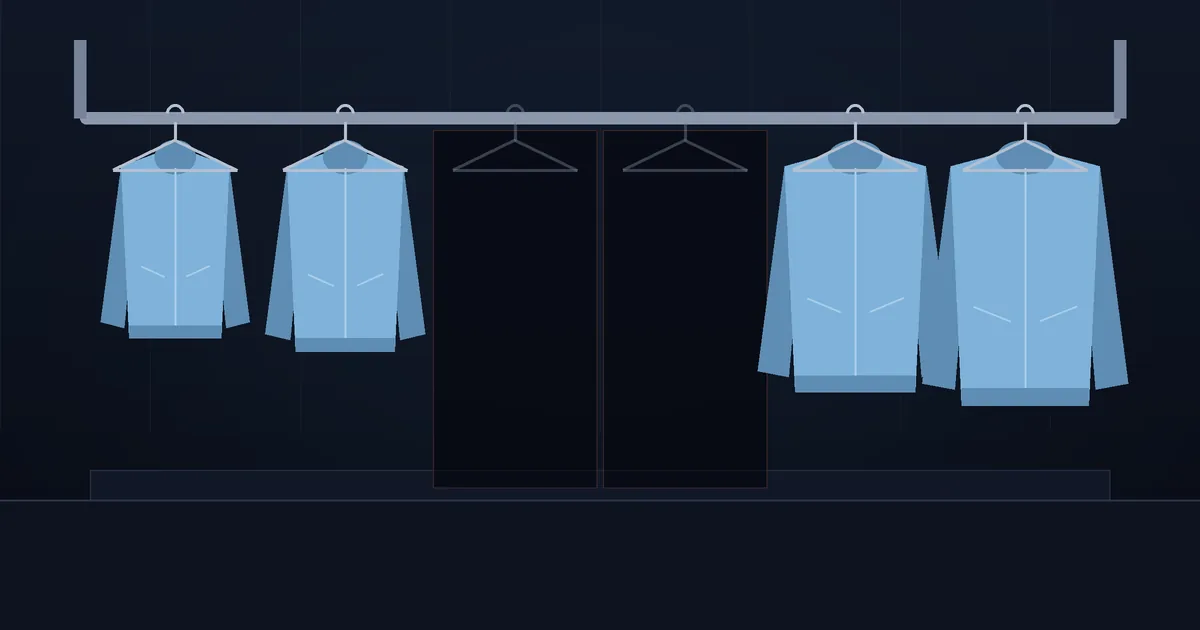
You open a competitor's product page, click through the sizes, and three of them are greyed out or struck through. Your own store does the same thing sometimes, and customers write in asking why a product variant is "currently blacked out". On Shopify this almost always means one thing: the variant cannot be bought right now. Why it can't be bought varies, and on a competitor's store the pattern of dark sizes and colours often says more about their stock than a product-level sellout.
What the greyed-out option actually means
Shopify themes draw the variant picker from the product data. When a variant has available: false, most modern themes either grey the option out, put a line through it, or keep it clickable but switch the button to "Sold out". If you pick a combination that was never created at all (say, a colour that only exists in two of the four sizes), many themes label it "Unavailable" instead.
How the option looks is up to the theme. Underneath, it is one flag per variant, and anyone can read that flag in the store's public data.
Six reasons a variant goes dark
| Reason | What a visitor sees | What /products.json shows |
|---|---|---|
| Stock tracked, quantity at zero, overselling off | Greyed or struck-through option, "Sold out" button | The variant is listed with available: false |
| Combination never created | "Unavailable" for that pair of options | No such variant in the list at all |
| Variant deleted by the store | The option disappears from the picker | The variant vanishes from the list |
| Stock at zero, but "continue selling when out of stock" is on | Nothing dark; the variant looks buyable | available: true even though the shelf is empty |
| Stock not tracked | Always buyable | Always available: true |
| Theme or app customisation (pre-order, "notify me" buttons) | Varies by store | Usually the same flag as above, with the app changing only the button |
Two of these matter for your own store. If customers complain about a dark option that should be in stock, check the inventory count at the location that sells online and the overselling setting on that variant. If an option shows "Unavailable", the variant probably was never created, which is an editing job in the product, not a stock problem.
The last three rows matter when you look at competitors: a store that oversells or does not track stock never shows a dark variant, so you learn nothing about their stock from it.
Reading a competitor's variants without guessing
Open competitor-store.com/products/product-handle.json or the full catalog at /products.json (we cover the format in the /products.json guide). Each product has a variants list. For every variant you get the option values (option1, option2, option3), the price, the compare-at price and the available flag. There is no stock count in the public data, only yes or no.
A quick manual check for one product looks like this:
- Open the product's JSON and find the
variantslist. - Write down each variant's options and its
availablevalue. - Repeat a day later and compare. A variant that flips from true to false sold out; one that flips back was restocked; one that is missing entirely was removed.
Take a running jacket in five sizes, XS to XL. On Monday all five are available. On Wednesday M and L are false and the other three are still true. On Friday M is back, L is still dark. The jacket is still on sale, but its size run is broken: the two sizes most people buy ran out first, M came back within days and L did not.
Why partial outages matter more than full sellouts
When a whole product sells out, every tool and most merchants notice. Product-level stockouts are the subject of the stockout playbook. Variant-level outages are quieter, and in apparel, footwear and anything with sizes they are often the bigger opportunity:
- Popular sizes go first. A product with only XS and XL left still shows as "in stock" on the collection page, yet most shoppers who land on it cannot buy.
- How fast a size comes back says something about supply. In the jacket example, M came back in two days and L did not. A competitor who refills one size quickly and leaves another empty may be waiting on a supplier or letting the product run down.
- If the same variant keeps going dark, it probably sells well. If their size L goes dark every few weeks, that size is probably moving, which is the same logic as in tracking a competitor's best-sellers.
- Colours get dropped one at a time. A colourway that goes dark and then disappears from the list is often the first step of a product being wound down.
What to do with it depends on whether you sell the same item. If you carry the jacket and have size L, that is the moment to make sure your L is in stock, visible in your collection and not hidden behind a filter. If you sell a close alternative, a gap in their popular size is a reason to check your own stock in that size. It doesn't call for a price cut.
The limits of looking from outside
The available flag can mislead you in a few ways:
- It is yes or no. You cannot tell one unit left from five hundred.
- Stores that oversell or do not track stock always show true, so you will see no gaps from them.
- Some stores hide sold-out variants or whole products, so a variant can look "removed" when it is only out of stock for a while.
- Pre-order setups keep the flag true while the item is not on the shelf.
- Checking by hand works for a handful of products. For a competitor with a few hundred products, each with several variants, the daily comparison turns into a spreadsheet nobody keeps up.
At that size, a tool starts to make sense. StoreSentry reads the same public catalog data and sends a sell-out or restock signal after its next check, alongside price changes, by email or Telegram. If you only need to look now and then, the free store checker or the JSON in your browser is enough.
See the size run break without checking by hand
StoreSentry checks competitor Shopify stores on a schedule and sends a digest of price moves, launches, restocks and sell-outs by email or Telegram. Free for 2 competitors, no card required; price history on every plan, CSV export on paid plans.
Install the app — free for 2 competitors →